
photo blog  photo tinker.jpg  photo connect.jpg  photo present.jpg
Showing posts with label for teachers. Show all posts

Monday, December 3, 2018

Hour of Code 2018

It's the most wonderful time of the year....
Computer Science Education Week!


This year for the Hour of Code I have different coding activities planned for the whole month of December, but to kick it off this week, each grade level that I work with 1st-4th is getting a choice of some of the different activities available through HourOfCode.com

On my website that I use with students, I created a page for each grade level so students can easily navigate to the different challenges. Click the images below to go to the direct page!


Also, to introduce Hour of Code to each grade level, I used some of the Code.org videos. 

1st & 2nd Grade

3rd Grade

4th Grade

Happy Coding!! 

Tuesday, January 26, 2016

Tech Tip Tuesday

Happy Tuesday! A couple tech ideas for you this week:


NPR had an article recently of how Class Dojo can tie in with Growth Mindset - they've created a series of videos to help kids understand the topic. A little cheesy, but cute!


As we use Google Apps for Education more and more in our day, there is always something new to learn! (growth mindset ;-) These tutorial videos range from 1-5 minutes on a variety of topics, from searching in Google, to YouTube and Google Drive. 

Tuesday, December 8, 2015

Tech Tip Tuesday

Happy Tuesday! Here's a couple tech tips for you this week:

PBS LearningMedia is your destination for direct access to thousands of classroom-ready, curriculum-targeted digital resources. PBS LearningMedia builds on the strength of public media and is designed to improve teacher effectiveness and student achievement. Resources are aligned to Common Core and national standards and include videos and interactives, as well as audio, documents, and in-depth lesson plans. You can browse by standards, grade level, subject area, and special collections. You can also favorite and share resources with your class and colleagues. Best of all, PBS LearningMedia’s basic service is free for PreK-12 educators.


The Work Collector is a Google Script that allows students to scan a QR code and then upload files directly into YOUR Google Drive account! If you are not using Google Classroom, but want students to submit work to you that you can share on your website, etc, this would be an easy way to collect their projects from computers or iPads. Thanks to The Techie Teacher for sharing this great resource!


Also... Don't forget that the Hour of Code is this week! If you want to try it with your students, feel free to join in during tech class, or visit https://hourofcode.com/us and check it out! The kids are loving that the new tutorials this year include Minecraft and Star Wars :-)

Tuesday, October 6, 2015

October Reading List

From Twitter to Instagram to Bloglovin' and all the email blasts I subscribe to, I get a lot of resources in my inbox on a daily basis! Here are some of my favorites to start the month of October:

Thanks to Shake Up Learning for putting this resource together about my one and only browser: Google Chrome!


Richard Byrne from Free Tech for Teachers just blogged about Google Keep is a new app that lets you take your to-do lists on the go AND allows to you to have collaborative to-do lists! I just downloaded the app and am excited to start using it more, for personal and professional uses. I'll do a blog post once I get to play with it more and share what I learn!


Julie from The Techie Teacher wrote a few guest blog posts last month that she highlighted, including 5 Reasons to Love the iPad Camera and Learning to Program with MaKey MaKey in Elementary School. 

October is also Connected Educator's Month and Bullying Prevention Month!

Check out the Connected Educators website for resources to staying connected with other educators all month long - you know I am :-)


And how cute is this Kindness Bingo from Edutopia?! Perfect for spreading kindness during Bullying Prevention Month!


What are you reading lately? Share in the comments below!

Tuesday, September 22, 2015

Google Tone

Last week at the NICE Share-O-Rama, I learned about a Chrome Extension called Google Tone. This one is a life changer my friends!!


As a tech teacher, I often have limited time with students, and need to get them links and resources quickly. Especially for my younger kiddos, typing in a URL can take several minutes. Enter Google Tone!!
So here's how it works in my tech lab:
1) I installed Google Tone on Chrome on my laptop and on Chrome on all the laptops in my lab. {I made sure there was no one signed into Chrome when I installed on the laptops.}

2) I go to a URL on my computer I want the students to get.

3) Press the Google Tone icon.

4) Students get a popup message that looks like this:


5) Students click on the message and are taken to the website.

BOOM! Done!! 

I just tried it with a class of first graders and it was <<SO fast and easy>>. And when things are easy, its a beautiful feeling :-) 

Monday, August 17, 2015

Here comes.. Whole30!

Feeling like you need a jump start to get the school year going in the right direction? 

I am the kind of person who needs a plan to stay on track. I need weekly grocery lists, meal prepping in advance, and yummy recipes. And what better time to get in a good routine than the start of a new school year? Enter: Whole30!


Starting Monday August 31, I am going to do another round of the Whole30. I did it for the first time back in May, and it was truly life changing. So, why not do it again! And recruit some of you do to do it with me :-) #togetherwearebetter

The Whole30 is not. a. diet. You can eat as much as you want - as long as you live within their "rules" - which is eating good, wholesome food. Yes, it will sound like you are cutting out a lot of your "favorites", but this is only 30 days! And as someone who has done it before, it is truly worth it! 


If this sounds like something you need in your life, then let's do it together!

In the words of Ryan Gosling... "So it's not going to be easy. It's going to be really hard. And we're going to have to work at this everyday but I want to do that... Will you do something for me? Will you just picture your life for me? What's it look like, 30 years from now, 40 years from now?..."


Yes, we CAN do this and we will!! And I've made it cute and easy for you with some <FREE> meal planning downloads!


But, while the planning guide will keep you going, I highly recommend you also purchase the Whole 30 Cookbook. It will answer all of your more detailed questions and give you yummy recipes to last you through all 30 days! 


Still not sure? Check out the Whole30 website, which has TONS of resources and support. Comment below if you plan on joining me for this journey! 

Sunday, March 22, 2015

Icon-apalooza

Last week I saw a post on A Trendy Teacher's blog that made me {oh-so-happy}!! So today I am doing some Spring Cleaning on my desktop and getting digitally organized!

I always used the colored labels for my Mac folders... and then they just turned into a dot. Boring! But now, my desktop folders can go from this:


to this!!!

Yes, you too can organize your desktop with any icon you want... And it is SO EASY!!

I started the same way that A Trendy Teacher did, with a blank slide in Keynote. I inserted a circle shape and then just put a text box over it with the name of the folder. 


Then, select both items that you want (so they are grouped together). You can do this by clicking and dragging to select everything, or by holding the Command key as you select each item. Press command-c to copy the images. 


Next, click on the folder you want to change the icon of. Click on Command-I to get Info on the folder, or control-click and select Get Info. 


Next, click on the folder icon:


And then click on command-v to paste! 


Congrats, you now have the prettiest icons in all the land! 

If you don't want to make personalized icons, you can use ANY IMAGE you want. Find the images you want from Google (or any clipart), and put them into a Keynote or document. 
Copy/Paste the same way above under "Get Info", and BAM! Personalized folders in just a few moments!


Have fun!

Friday, March 6, 2015

AirDrop Awesomeness

All my hopes and dreams came true when I updated to Yosemite... or at least one of them.

Yes, in Yosemite, you can now AirDrop between your MacBook and an iOS device! I've already used it twice this week to get pictures from my phone to my laptop wirelessly! Brilliant! 

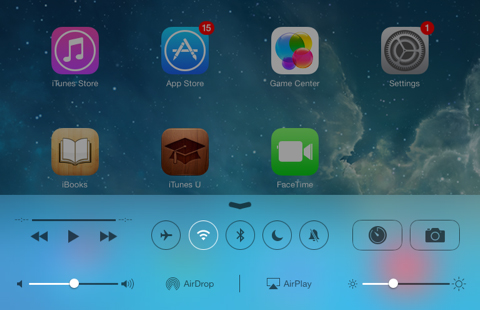
To use AirDrop on an iPhone or iPad, swipe up from the bottom to get the Control Center:


Click on AirDrop, and then Everyone (I had to do everyone to see my laptop as an option)

Then, on your laptop, go to AirDrop from Finder:


Since I've been using this to share Photos, I've been going into my Photo Album, selecting the photo I want, and then click the share button:


Once AirDrop comes up, I just click on where I want it shared to in AirDrop, and it shows up on my laptop in the downloads folder! 

You can also share the opposite way, from your Mac to iPad/iPhone. Also, you can AirDrop more than just photos - Keynotes, videos, webpages.. the list goes on!

For more info, check out  Apple's support page.

Or, check out this video tutorial.


Thursday, November 6, 2014

SafeShare.TV + QR Code Smash!

I stopped by the Kindergarten wing yesterday, and here's what I saw!


Emily found a QR Code listening center on Teachers Pay Teachers for Thanksgiving stories, and the QR codes linked to videos of the stories. The students scanned the QR code and listened to the story as the video followed the pages and words. They were loving it!


One thing I noticed is that the videos were actually from YouTube, but were on a site called SafeShare.TV. On this site, you can put in a link to a YouTube video, and it will block out everything else around the video on a unique link.. even the ad that plays before it! Pretty nifty!


To test it out, I found the video on YouTube for Duck for President. 

Then, I pasted the link into SafeShare.TV and clicked the Generate Safe Link button.


You can also click on Customize Video to choose just a portion or clip from the video to share on your link:


And voila! Your video is complete!


So the next step would be to create the QR Code that links to the video. That's easy, we can do that on QRstuff.com. Just copy/paste the SafeShare.TV link that you made into the link box:


Then click on Download QR Code and you can put it onto any worksheet, poster, or even just your SmartBoard for students to scan and watch! 
Try testing this QR Code by using a QR Reader app, like Scan. Enjoy!