
photo blog  photo tinker.jpg  photo connect.jpg  photo present.jpg
Showing posts with label ipads. Show all posts

Tuesday, October 6, 2015

October Reading List

From Twitter to Instagram to Bloglovin' and all the email blasts I subscribe to, I get a lot of resources in my inbox on a daily basis! Here are some of my favorites to start the month of October:

Thanks to Shake Up Learning for putting this resource together about my one and only browser: Google Chrome!


Richard Byrne from Free Tech for Teachers just blogged about Google Keep is a new app that lets you take your to-do lists on the go AND allows to you to have collaborative to-do lists! I just downloaded the app and am excited to start using it more, for personal and professional uses. I'll do a blog post once I get to play with it more and share what I learn!


Julie from The Techie Teacher wrote a few guest blog posts last month that she highlighted, including 5 Reasons to Love the iPad Camera and Learning to Program with MaKey MaKey in Elementary School. 

October is also Connected Educator's Month and Bullying Prevention Month!

Check out the Connected Educators website for resources to staying connected with other educators all month long - you know I am :-)


And how cute is this Kindness Bingo from Edutopia?! Perfect for spreading kindness during Bullying Prevention Month!


What are you reading lately? Share in the comments below!

Tuesday, August 11, 2015

Reading List

With the blogging world a buzz with back to school, I have found so many awesome links and articles I want to share with you!

First, I found this awesome blog of Genius Hour ideas, called 20% Genius. It was very timely after taking Julie C. & Teresa A's Creativity in the Classroom Academy 39 class. They are currently doing a "20 Day Challenge" with tips for getting started with Genius Hour in the classroom. If you hope to do a Genius Hour this year in your classroom, I think its a must read!


Our school, like many others, is reading the book Mindset by Carol Dweck, and are going to focus in on Growth Mindset this year. Meghan Zigmond did a blog post #pb10for10 with picture books to go along with it! Love it Meghan!!


I've also been reading up on various MakerSpace ideas, and found this guide that doesn't even need a true "MakerSpace" to be a Maker! Just need an iPad :-)


I'm teaching an Academy 39 Class next week called "Extreme Makeover: Classroom Edition", so I've also been reading (& Pinteresting) a lot about creating brain friendly learning spaces. Erin Klein has been a big inspiration! 


I'm excited I joined in on tonight's Twitter chat with Scholastic and Erin Klein, discussing learning environments. It was an AWESOME discussion! Check out the #topteaching hashtag to find more amazing resources on classroom redesign!


Have you found (or even written!) any great posts or articles I should share too? Comment below!

Friday, March 6, 2015

AirDrop Awesomeness

All my hopes and dreams came true when I updated to Yosemite... or at least one of them.

Yes, in Yosemite, you can now AirDrop between your MacBook and an iOS device! I've already used it twice this week to get pictures from my phone to my laptop wirelessly! Brilliant! 

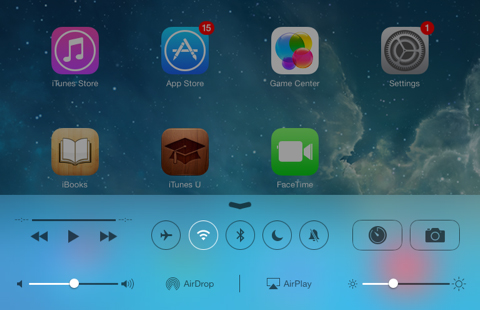
To use AirDrop on an iPhone or iPad, swipe up from the bottom to get the Control Center:


Click on AirDrop, and then Everyone (I had to do everyone to see my laptop as an option)

Then, on your laptop, go to AirDrop from Finder:


Since I've been using this to share Photos, I've been going into my Photo Album, selecting the photo I want, and then click the share button:


Once AirDrop comes up, I just click on where I want it shared to in AirDrop, and it shows up on my laptop in the downloads folder! 

You can also share the opposite way, from your Mac to iPad/iPhone. Also, you can AirDrop more than just photos - Keynotes, videos, webpages.. the list goes on!

For more info, check out  Apple's support page.

Or, check out this video tutorial.


Sunday, November 30, 2014

Tech Talk Blog Hop

I'm excited to be joining the Tech Talk blog hop, hosted by Tasia at Great Minds Teach Alike! 


DoInk GreenScreen App


With our students, using the green screen is so fun and has so much potential, but in the past it has been a challenge. Using iMovie was hard for students (and teachers!) and took lots of time and patience. So I was oh-so-happy when I found out that there was, in fact, an app for that! {I usually just want to share free apps - this one is $2.99 but worth every penny! There is a discount for those of you using the VPP. It is perfect for a one iPad classroom too!}

First off, for the Green Screen backdrop we just use a sheet that we bought on Amazon for ~$17. It is easy to bring anywhere in the school a teacher needs it, and can be stapled up to a tack strip or draped over something for the background. Just make sure your students aren't wearing green! 

{Students using the Green Screen last year to make yoga tutorial videos for Brain Breaks}

DoInk GreenScreen app has made making the videos SO EASY! 

Film with the green screen all in one app!
1. Choose background
{Can be a still image or a pre-recorded video}
2. Film right over it!
3. Publish and share!

I found this easy to follow tutorial on YouTube to explain a little more:


If you want just a quick visual rundown, here is a guide from My Paperless Classroom.

After you create your green screen movie with DoInk, you can do some App Smashing as well by adding in titles and sound effects in iMovie or any other app you can import video into! Then, share your video with Dropbox, Google Drive, etc. 

Making a video with the green screen has endless possibilities - from weather reports to book talks, travel commercials, and newscasts. 

Thanks for hopping over! Leave a comment if you've used DoInk or have an idea you plan to use in your own classroom. Don't forget to check out the other amazing bloggers and their ideas through Great Minds Teach Alike! 


Thursday, November 6, 2014

SafeShare.TV + QR Code Smash!

I stopped by the Kindergarten wing yesterday, and here's what I saw!


Emily found a QR Code listening center on Teachers Pay Teachers for Thanksgiving stories, and the QR codes linked to videos of the stories. The students scanned the QR code and listened to the story as the video followed the pages and words. They were loving it!


One thing I noticed is that the videos were actually from YouTube, but were on a site called SafeShare.TV. On this site, you can put in a link to a YouTube video, and it will block out everything else around the video on a unique link.. even the ad that plays before it! Pretty nifty!


To test it out, I found the video on YouTube for Duck for President. 

Then, I pasted the link into SafeShare.TV and clicked the Generate Safe Link button.


You can also click on Customize Video to choose just a portion or clip from the video to share on your link:


And voila! Your video is complete!


So the next step would be to create the QR Code that links to the video. That's easy, we can do that on QRstuff.com. Just copy/paste the SafeShare.TV link that you made into the link box:


Then click on Download QR Code and you can put it onto any worksheet, poster, or even just your SmartBoard for students to scan and watch! 
Try testing this QR Code by using a QR Reader app, like Scan. Enjoy!


Wednesday, May 7, 2014

Sharing Ideas

I have a few things that have been shared with me that I want to pass onto you! 

Give your class brain breaks with this fun website! You can choose calming, energizing, focusing, and more, some of which even align to Common Core State Standards. Creating an account and setting up your class is free! 


The Teaching Tribune is a blog that has a group of teachers who contribute and write posts about things they are doing in their classroom. Lots of ideas for every grade and subject!


Thanks to Jaime G. for sharing this website with app recommendations!


Wednesday, April 16, 2014

Poetry Apps

Poetry Month is here! Some new apps are on our iPads, all of which are by Read Write Think.


First up is Word Mover, which is magnetic poetry for the iPads. Students can choose words from a word bank or write their own, and save, share, or print their poems.


Theme Poems introduces students to theme or shape poems, and has various images for students to choose from to brainstorm and write their poem.


Acrostic Poems has students brainstorm and write acrostic poems using any word of their choice. It also gives "hint" words for each letter to help students write their poems.


Finally, the Haiku app teaches students how to write a haiku, and includes brainstorming with syllable counts to help students get familiar with counting the syllables when writing their haiku.


Wednesday, March 5, 2014

ICE Top 3

Have you ever been to a professional development conference and had FUN? That's how #ICE14 was for me last week. I learned so much and was rejuvenated and inspired. I am so excited to share everything I've learned at upcoming Academy 39 classes! Here's the top 3 things that I took away last week:

3. #OurKidsTeach
Kristin Ziemke (@KristinZiemke) and Katie Muhtaris (@literacyspark) are teachers at Burley School in CPS. They build their classroom environments so that "The community teaches the community, not just teacher to student, student to student"
One of the ways they build their classroom community is through blogging using Kidblog. This has created a shift in their classroom - "Kids are no longer looking to their teacher asking, “is this what you want”? They are thinking, "hmm what would my followers want!" If you don't have a blog up and running in your classroom currently and want to start one this year we can sit down together and set it up - or look for an Academy 39 class this summer!

2. Padlet is my new favorite tool.
Are you in my Appy Hour class? Good, because this is what I'm showing next week! Padlet is one of those tools that I'd heard of before, but until I saw it in action during Kristin Ziemke's and Carolyn Skibba's (@skibtech) "Beyond Apps" workshop, I wasn't quite sure what to make of it. It's an online bulletin board. Sounds simple? It is, and that is why it has SO much potential! It can be a backchannel, discussion board, KWL chart, a stream of student work, and more. It works on an iPad or a computer, so students can share the work they've done and post it on the "bulletin board". Here's an example that was shared that students have created of Rainforest Fish (Sorry for my fuzzy iPad photography):


Here are two examples we created in the workshop: uploading pictures from Drawing Pad, and uploading ScreenChomps. 

1. "Technology doesn't equal engagement."

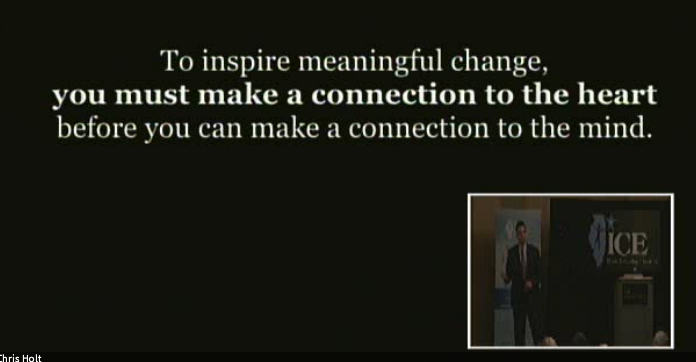
Harsh, I know. But George Couros (@gcouros) (who is one of my new favorite educators), really pushed the envelope on my thinking during his keynote speech at ICE. Here are some of the things he said that resonated with me:


And finally... he always says to ask yourself "what's best for kids"? That should be your guiding question day in and day out. They're the reason we're here of course! :-)

George Couros has also done a TED talk if you're interested in being inspired and have 20 minutes to spare. It's worth it! I guarantee it will bring a smile to your face, or your money back.